#1
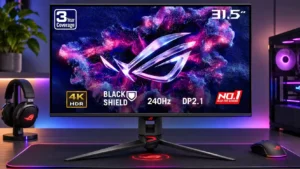
Overall: 4.2/5
Picture-in-picture and side-by-side input modes make it easier to monitor two connected devices, a welcome addition to an already flexible gaming display.
Pros: overall satisfaction, black levels
Cons: value for money, stand adjustability
#2
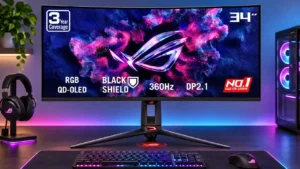
Overall: 4.5/5
Picture-in-picture and side-by-side source modes are convenient when keeping two connected systems visible at once.
Pros: color gamut, contrast
Cons: value for money, Resolution
#3
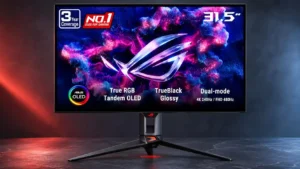
Overall: 4.3/5
Flexible picture-in-picture and picture-by-picture layouts let two sources share the screen, including individually adjustable windows.
Pros: black levels, sharpness
Cons: value for money, brightness
#4
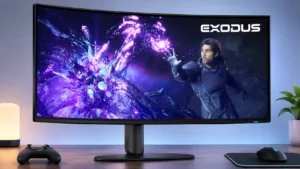
Overall: 4.3/5
The display can show multiple sources with flexible arrangements, including a three-source option noted in one comparison. Picture-by-picture use comes with HDR and refresh-rate restrictions.
Pros: overall satisfaction, Text fringing
Cons: brightness, Edge dimming behavior
#5
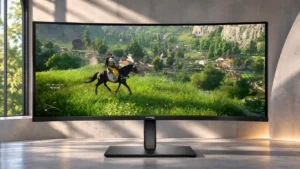
Overall: 4.4/5
Picture-by-picture and picture-in-picture modes offer flexible ways to divide the screen and move between sources.
Pros: refresh rate, color accuracy
Cons: console gaming compatibility, DisplayPort connectivity
#6
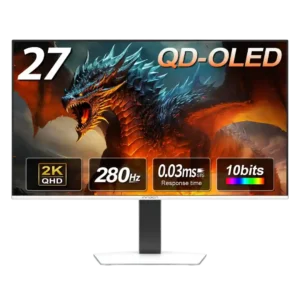
Overall: 4.3/5
Picture-in-picture support is a useful extra for displaying multiple connected sources at once.
Pros: color gamut, overall picture quality
Cons: brightness, HDR performance
#7
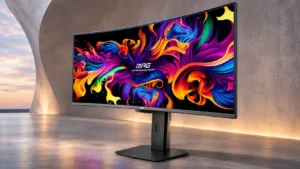
Overall: 4.4/5
The picture-in-picture and picture-by-picture draws praise for improving picture quality, convenience, or responsiveness.
Pros: refresh rate, Text fringing
Cons: Resolution, GPU demands
#8
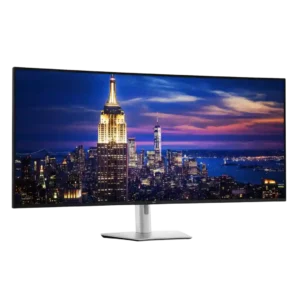
Overall: 4.3/5
Picture-in-picture, picture-by-picture, and true screen partitioning are defining strengths, letting the panel behave like several displays or accept multiple systems at once. The many layouts are flexible, though certain Mac...
Pros: productivity versatility, overall satisfaction
Cons: value for money, response time
#9
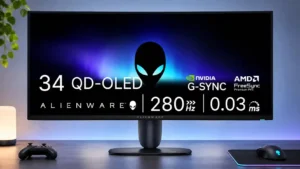
Overall: 4.4/5
PiP/PbP options are genuinely useful for split-screen viewing and working across two inputs, with convenient positioning controls.
Pros: brightness, value for money
Cons: port selection, built-in speakers
#10
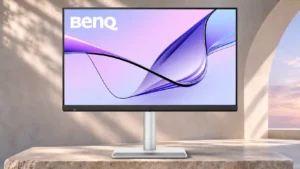
Overall: 4.4/5
Side-by-side computer views pair well with the KVM functions for cross-platform multitasking and transfer tasks.
Pros: port selection, color accuracy
Cons: built-in speakers, speaker quality
#11
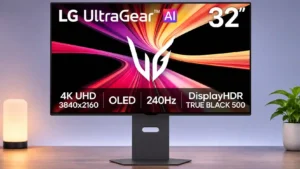
Overall: 3.9/5
Picture-in-picture and side-by-side modes can be handy when following content from more than one source.
Pros: brightness, color gamut
Cons: AI scene optimization, value for money
#12
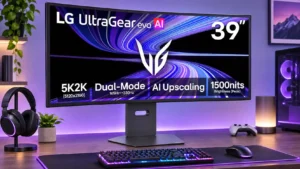
Overall: 4.1/5
Displaying two inputs at once helps multi-device use, though refresh rate can drop when sharing the panel between a Mac and PC.
Pros: Resolution, overall satisfaction
Cons: value for money, Image scaling
#13
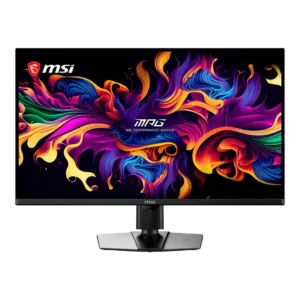
Overall: 4.4/5
Picture-in-picture and picture-by-picture are included alongside the KVM and multi-input controls, strengthening the monitor’s multi-system flexibility.
Pros: brightness, reflection handling
Cons: cable management
#14
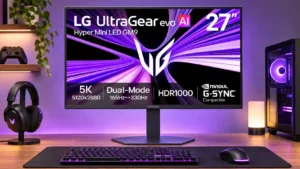
Overall: 4.0/5
Neither picture-in-picture nor picture-by-picture is available, limiting simultaneous use of multiple video sources.
Pros: Resolution, Dual-mode versatility
Cons: value for money, GPU demands
#15
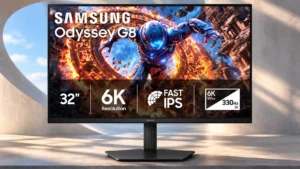
Overall: 3.5/5
Neither split-screen input mode is provided, a notable omission on a large high-resolution panel meant for flexible setups.
Pros: Resolution, sharpness
Cons: value for money, HDR performance