#1
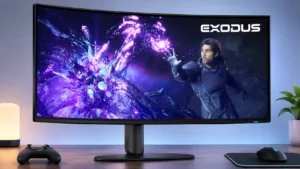
DisplayPort Alt Mode and laptop charging over USB-C make notebook integration more convenient. The 90W limit should be checked against a power-hungry laptop’s requirements.
Pros: overall satisfaction, Text fringing
Cons: brightness, Edge dimming behavior
#2
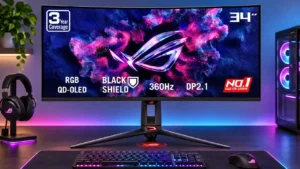
USB-C DisplayPort Alt Mode and 90W charging offer a convenient single-cable laptop connection.
Pros: color gamut, contrast
Cons: value for money, Resolution
#3

Connecting a MacBook through one USB-C-shaped Thunderbolt connection creates a clean, low-effort desktop setup.
Pros: Monitor daisy-chaining, overall picture quality
Cons: value for money, refresh rate
#4
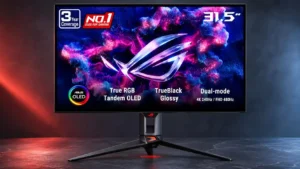
A USB-C input with substantial power delivery, paired with KVM and split-screen functions, suits a mixed laptop-and-desktop station.
Pros: black levels, sharpness
Cons: value for money, brightness
#5
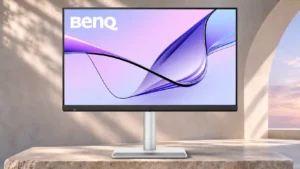
The Thunderbolt/USB-C connections make a MacBook-friendly dock-and-display setup convenient and clean.
Pros: port selection, color accuracy
Cons: built-in speakers, speaker quality
#6
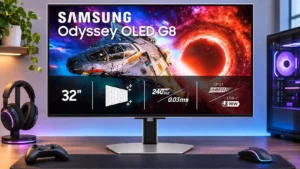
Compatible laptops can use a clean one-cable display, hub and charging setup. Higher USB data speed modes reduce the video bandwidth available.
Pros: PC gaming compatibility, reflection handling
Cons: color accuracy, VRR flicker
#7
USB-C can carry laptop video and substantial charging through one connection, reducing cable clutter in a desktop setup.
Pros: refresh rate, color accuracy
Cons: console gaming compatibility, DisplayPort connectivity
#8
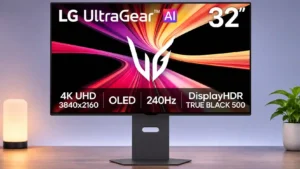
The USB-C input provides a convenient one-cable laptop display and charging solution.
Pros: brightness, color gamut
Cons: AI scene optimization, value for money
#9
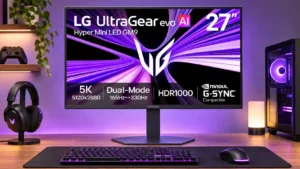
USB-C handles a supported laptop's display, data and charging in one connection. Hub capacity and bandwidth remain more limited than a full Thunderbolt dock.
Pros: Resolution, Dual-mode versatility
Cons: value for money, GPU demands