
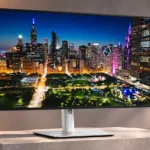
Dell U3225QE Feature Scores
Explore all 79 feature scores for Dell U3225QE, organized into pros and cons.
Scores by Feature
Summary
79 reviewed features-
Very positive 4.5-5.038 (48%)
-
Positive 3.5-4.421 (27%)
-
Neutral 2.5-3.45 (6%)
-
Negative 1.5-2.410 (13%)
-
Very negative below 1.55 (6%)
Pros
Sort
-
At 120Hz, desktop motion and scrolling feel markedly more fluid than on 60Hz office monitors; response times limit the gaming payoff.
-
The integrated Thunderbolt 4 hub replaces much of a standalone dock, making laptop workstations markedly simpler.
-
Abundant Thunderbolt, USB-A, USB-C, HDMI, DisplayPort, and networking connections are among its biggest advantages over typical office monitors.
-
Up to 140W of power delivery is unusually strong for a monitor and can charge demanding laptops, subject to device compatibility.
-
Enhanced IPS Black delivers exceptionally strong LCD contrast with visibly richer dark areas, but it cannot achieve OLED-level blacks.
-
Broad sRGB and P3 coverage produces vibrant images and helps with creative work, although a few competing displays offer wider specialized coverage.
-
The 4K panel gives crisp text and plenty of workspace at 32 inches, even if higher-density 5K or 6K alternatives look finer.
-
Excellent docking and a rich 4K picture make this a high-end office standout, while its price, limited HDR, and isolated panel problems temper the appeal.
-
Height, tilt, swivel, and portrait pivot give extensive positioning freedom for work and collaboration.
-
Numerous fast USB connections handle peripherals, drives, and charging in one place instead of needing a separate hub.
-
Text and images are crisp and highly readable, though specialist 5K and 6K monitors retain a density advantage.
-
Color accuracy is a standout strength for photos, video, and general work, with strong results even before calibration.
-
Thin bezels, subtle branding, and a silver-and-black body give it a polished, understated office look.
-
Wide color coverage, accurate presets, and a large sharp canvas make the monitor a strong option for photo editing; extreme precision still benefits from calibration.
-
The 32-inch format gives documents, editors, and side-by-side windows breathing room while taking more space than smaller alternatives.
-
The built-in KVM makes one keyboard and mouse practical across two computers, provided both are wired correctly.
-
DisplayPort and Thunderbolt outputs offer convenient multi-monitor expansion, though not every computer or Mac configuration can drive the same number of screens.
-
The built-in Ethernet jack is especially welcome in a monitor that can double as a complete desktop dock.
-
The low-flicker display, anti-glare surface, and smooth motion earn praise for lengthy work sessions, although comfort remains personal.
-
Enhanced IPS Black is praised for elevating LCD contrast and color without OLED burn-in concerns, while its remaining glow and gray blacks are clear limits.
-
Brightness is ample for everyday SDR work and most offices, but measurements and enthusiasm vary, with less headroom for dramatic HDR.
-
The understated silver finish and precise-looking design feel upscale even though much of the body is plastic.
-
The low-reflectance coating handles common office glare well, but intense direct light and some colored reflection effects remain possible.
-
The stand is reasonably compact for a 32-inch monitor, though the overall screen still demands desk depth and one setup found the stand bulky.
-
Presets for standard and creative color spaces simplify switching tasks, though some image modes are less appealing than Standard.
-
Assembly and laptop connection are straightforward, with a quick-release stand and built-in hub reducing extra setup work.
-
The hidden front pop-down ports are useful for temporary devices, although the mechanism can feel stiff or wobble the screen.
-
Adjustable color settings and Dell's desktop tools provide welcome flexibility, with presets useful for changing creative projects.
-
Dell's desktop management and color utilities put common settings and calibration adjustments within easy reach.
-
Slim, even borders and reduced front-facing branding make the display cleaner and more compact-looking than older office monitors.
-
Standard mounting support makes it easy to move the big panel onto an arm when the included stand does not suit the desk.
-
Color is already impressively accurate in the preferred modes, and calibration can correct smaller white-balance inaccuracies for more exacting work.
-
The joystick and large menus are approachable, though many picture presets can take a little time to learn.
-
Blacks look substantially deeper than on ordinary IPS screens, though they can still appear gray or yellowish beside OLED and in dark rooms.
-
HDMI variable refresh support benefits console and casual gaming, though it lacks some gaming-specific adaptive-sync optimizations.
-
The stand often feels secure but can wobble with desk vibration or when operating the front port module.
-
Thunderbolt and color modes work well with Mac laptops, but extending to a third screen can require specific port arrangements.
-
4K across 32 inches looks sharp for normal office distance, but smaller 5K monitors and 32-inch 6K displays deliver noticeably finer detail.
-
Ambient-light adjustment helps the screen adapt to a bright office, but it can dim too aggressively in darker rooms. Manual brightness remains a useful fallback.
-
Games capped near 60 fps are a comfortable fit, with clear 4K detail and smooth enough play for casual sessions.
-
The LCD panel provides peace of mind for persistent menus, toolbars, and static workspaces compared with OLED burn-in worries.
-
HDMI 2.1 and console VRR support enable 4K at 120Hz on modern consoles, with response blur the main compromise.
-
Wired networking through the monitor is a practical advantage for laptops without an Ethernet socket.
-
HDMI 2.1 adds useful 4K/120Hz input capability for modern gaming systems alongside the workstation connections.
-
Mac-style 3008-by-1962 scaling can create a practical single-screen workspace on the large panel without sacrificing legibility.
-
Low input lag helps controls feel responsive even though pixel response and resulting motion blur are weaker.
-
Rich color, crisp 4K detail, and improved IPS contrast produce a particularly appealing general-purpose image.
-
The monitor arrives in secure packaging that makes unboxing straightforward without an elaborate presentation.
-
HDMI 2.1 can show PS5 output at 4K/120Hz with VRR and responsive controls, but moving objects blur more than on dedicated gaming screens.
-
Flicker-free brightness control is a welcome feature for sensitive users and extended desk sessions.
-
Routing through the stand helps for basic connections, but its low opening can expose cables and gets crowded when many ports are in use.
-
The game preset can make scenes more vivid, but settings require some experimentation and do not solve the monitor's slow response.
-
Default gamma is generally close to target, with a few small brightness and white-balance deviations that can be corrected.
-
The silver plastic housing generally feels premium, while the pop-down USB module can feel flimsy or require a hard press.
-
Side-by-side and inset display modes are handy for viewing different inputs together, even if not everyone will need them.
-
It is manageable to assemble and reposition for a 32-inch desk display, though owners considering monitor arms should account for its weight.
-
Slower-paced games benefit from large, colorful 4K visuals, while less demanding motion makes ghosting easier to tolerate.
-
Text appears more natural than on the OLED TV one owner previously used as a monitor, avoiding a distraction for prolonged desktop use.
-
The box includes useful Thunderbolt, DisplayPort, USB, and power cables, although an HDMI cable is not included.
Cons
Sort
-
The 120Hz refresh is a plus, but slow response, ghosting, and limited gaming-specific features make it a poor match for serious competitive play.
-
Edge-lit HDR dimming is a major weakness: bright elements affect large screen areas and the HDR dimming behavior cannot be disabled.
-
There are no built-in speakers, so calls, music, and game audio require headphones or external audio equipment.
-
Bright highlights lack local precision and can look flat or muddy rather than standing out sharply against dark scenes.
-
Uneven dark backgrounds and occasional green-yellow tint across white areas can distract from an otherwise crisp image.
-
DisplayHDR 600 certification does not translate to truly compelling HDR; coarse local dimming, blooming, and limited black control are common criticisms.
-
Pixel transitions are slow by gaming standards, causing blur in quick scenes despite the otherwise responsive 120Hz experience.
-
The edge-lit HDR system produces conspicuous halos and washes out detail around bright objects on dark backgrounds.
-
The fastest overdrive setting introduces severe artifacts, making the normal response mode the safer choice for games.
-
A stuck/dead pixel on an otherwise promising new display raises a quality-control concern, making an early inspection worthwhile.
-
A new display developed a stuck red pixel that intermittently went dead, undermining confidence in an otherwise impressive screen.
-
IPS glow and visible backlight bleed remain drawbacks despite the improved IPS Black panel, especially against dark backgrounds.
-
Display Stream Compression raises concerns for color-sensitive workflows because it is not mathematically lossless, although no visible artifact is demonstrated.
-
Ghost trails remain noticeable during quick game movement, although normal mode can keep them tolerable for casual play.
-
No built-in webcam means an external camera is needed for a complete video-meeting setup.
-
Driving 4K at high refresh rates requires a capable computer and the right output connection; weaker hardware can limit the benefit.
-
The anti-glare surface generally looks good but can produce a warmer-colored reflection than some conventional matte screens.
-
Wide-angle picture quality is generally good, but distracting green tint shifts can affect some panels even near the center.
-
The premium price makes sense when docking, KVM, networking, and 120Hz all get used; basic 4K buyers can spend less.
-
120Hz makes scrolling and cursor movement much smoother, but fast-moving game detail still blurs more than on gaming-focused monitors.
Use Cases
Best for
Sort
-
Large, sharp workspace and a powerful integrated dock make this exceptionally capable for documents, spreadsheets, and everyday multitasking.
-
One Thunderbolt cable can carry display, data, and substantial laptop charging, replacing separate dock connections for compatible computers.
-
Multiple video inputs and KVM switching make moving between work and personal machines quick and desk-friendly.
-
The bright panel and effective coating generally keep text and apps legible in sunny offices, although direct window glare can still be distracting.
-
Sharp 4K detail, good color presets, and 120Hz timelines suit regular editing, but HDR-focused finishing is better served elsewhere.
-
Integrated docking, USB peripherals, Ethernet, and a large workspace make it a particularly capable home-office centerpiece.
-
Excellent daytime productivity combines with capable after-work casual gaming, but it cannot replace a dedicated fast gaming display.
-
Strong factory accuracy and wide color spaces suit many professional tasks, while the most demanding HDR and color workflows may need calibration or a specialist display.
-
Occasional console and PC play looks sharp and benefits from 120Hz and VRR, though slower pixel transitions make fast action less appealing.
-
Crisp text, wide desktop space, and convenient computer switching make long code-and-terminal workflows easy to arrange.
-
4K detail, vivid colors, and solid SDR contrast make films enjoyable, yet dark scenes and especially HDR highlights are underwhelming next to OLED.
-
Strong color accuracy and the roomy 4K canvas suit ordinary design work, with specialized high-density and OLED alternatives for niche needs.
-
The spacious 4K canvas, rich colors, presets, and easy laptop connectivity make this a compelling display for creating and editing content.
-
Sharp text and comfortable panel behavior suit lengthy writing sessions, though green-tinted white backgrounds can be distracting if present.
Conditional or not ideal for
Sort
-
Portrait orientationThe stand pivots vertically, but green tint and uneven whites can make portrait use unpleasant on an affected screen.
-
Dark-room viewingIPS glow, gray blacks, and uneven dark backgrounds are easier to notice in dim rooms, so this is less convincing than OLED for lights-off use.
-
HDR gamingGames can use HDR modes, but the basic edge-lit backlight and restrained highlights make HDR gaming a secondary attraction.