Compare Dell S2725QC vs ASUS ProArt Display PA27JCV

Dell S2725QC

Dell S2725QC

Overall score 4.2 / 5

Based on 14 scored reviews

vs
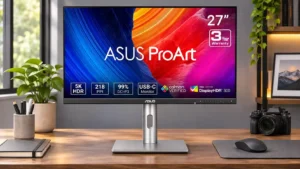
ASUS ProArt Display PA27JCV

ASUS ProArt Display PA27JCV

Overall score 4.1 / 5

Based on 26 scored reviews

How we score

Scorata scores summarize analyzed review evidence on a 1–5 scale; they are not laboratory measurements or a simple average of customer star ratings. Feature scores summarize the reviews covering that feature. The overall score averages feature scores within each review, then combines review averages. When both expert and customer evidence are available, those two groups receive equal weight. Products can have different review coverage, so small score gaps do not establish a winner.

Recommendations prioritize important features for the category, with a score of at least 3.5, a gap of at least 0.25 points and at least two supporting reviews per product. Features with widely varying scores or broad connectivity contexts are excluded from recommendations. These safeguards do not establish statistical significance.

Quick verdict

What each product is best for

The review evidence points to a tradeoff: speaker quality and built-in speakers versus KVM switch performance and Gamma tracking. Choose according to which strengths matter more to you; the overall score alone does not settle that choice.

Choose Dell S2725QC for speaker quality and built-in speakers.

Choose ASUS ProArt Display PA27JCV for KVM switch performance and Gamma tracking.

Why these recommendations?

Dell S2725QC

Where It Has the Edge

  • speaker quality is 4.6 vs 1.0. Clear dialogue, useful loudness and even a little bass are better than many monitor speakers, although fine low-volume...
  • built-in speakers is 3.9 vs 1.0. The two integrated speakers are unusually usable for a budget monitor, particularly for meetings and YouTube, although they...
  • refresh rate is 4.6 vs 1.9. The 120Hz refresh rate makes everyday scrolling and window movement noticeably smoother than 60Hz and adds useful casual-gaming...

ASUS ProArt Display PA27JCV

Where It Has the Edge

  • KVM switch performance is 4.5 vs 2.0. Automatic keyboard-and-mouse switching between two systems is one of the more practical extras. Setup and switching smoothness vary...
  • Gamma tracking is 4.7 vs 3.0. Grayscale and gamma tracking are generally dependable, making standard color modes useful without extensive setup.
  • brightness is 5.0 vs 3.5. Strong SDR brightness gives this display ample headroom for sunlit studios. Some presets restrict luminance or need lowering...
Dell S2725QC 4.2 overall score
ASUS ProArt Display PA27JCV 4.1 overall score

Compare features

Scores are out of 5. Missing scores mean missing review evidence, not a missing feature.

Scored on both products

Other features

Speaker quality
Dell S2725QC
4.6

Clear dialogue, useful loudness and even a little bass are better than many monitor speakers, although fine low-volume control and hi-fi depth are limited.

ASUS ProArt Display PA27JCV
1.0

The built-in sound lacks volume and body and is suitable mainly for basic system alerts.

Built-in speakers
Dell S2725QC
3.9

The two integrated speakers are unusually usable for a budget monitor, particularly for meetings and YouTube, although they cannot replace dedicated audio gear.

ASUS ProArt Display PA27JCV
1.0

The integrated speakers are widely criticized as too quiet, thin or muffled for enjoyable audio. External speakers or headphones are the better option.

Refresh rate
Dell S2725QC
4.6

The 120Hz refresh rate makes everyday scrolling and window movement noticeably smoother than 60Hz and adds useful casual-gaming headroom.

ASUS ProArt Display PA27JCV
1.9

The 60Hz ceiling is repeatedly cited as dated, especially beside modern high-refresh laptop screens and for fast video or gaming.

Premium feel
Dell S2725QC
4.5

A clean contemporary finish looks more expensive than its price, but plastic construction keeps the actual tactile experience short of higher-end models.

ASUS ProArt Display PA27JCV
2.0

The display prioritizes capability over luxurious materials, which makes sense at its price but feels less refined than flagship competitors.

Backlight bleed control
Dell S2725QC
5.0

One test sample showed pleasingly even illumination without conspicuous edge bleed, a benefit for work and letterboxed films.

ASUS ProArt Display PA27JCV
3.0

Experiences vary sharply by unit. Several users noticed clear edge bleed in dark imagery, while others found little or none.

Viewing angles
Dell S2725QC
4.8

The IPS panel stays fairly consistent when viewed from the side, convenient for sharing a screen, though some colors change at extreme angles.

ASUS ProArt Display PA27JCV
3.0

Viewing angles is a situational tradeoff rather than a clear reason to buy this display.

VRR compatibility
Dell S2725QC
4.8

Support for common variable-refresh formats helps prevent tearing on supported PCs and consoles.

ASUS ProArt Display PA27JCV
3.0

VESA MediaSync can help steady frame pacing near 60fps but is less versatile than gaming-oriented high-refresh VRR.

Included accessories
Dell S2725QC
2.0

A supplied USB-C cable helps get started, but one account criticizes its very short length and the absence of bundled HDMI leads.

ASUS ProArt Display PA27JCV
3.5

A useful starter set of cables and small extras is provided, though some regional packages lack a USB lead or shading hood.

Video cadence compatibility
Dell S2725QC
2.5

Although non-integer refresh rates are accepted, one Apple Silicon workflow needed BetterDisplay to expose them, complicating exact video frame-rate matching.

ASUS ProArt Display PA27JCV
4.0

MediaSync is a useful addition for smooth film-rate content playback in editing workflows.

Black levels
Dell S2725QC
2.6

Blacks tend toward gray and lack OLED depth, especially in dark scenes and HDR, though some viewers find SDR movie blacks acceptable for the price.

ASUS ProArt Display PA27JCV
4.0

The IPS Black panel offers respectable blacks for ordinary work, but shadows can look gray and do not reach OLED depth.

Ghosting control
Dell S2725QC
2.6

Feedback is divided: one hands-on tester noticed no ghosting, but instrumented coverage and another gaming assessment describe persistent trails behind fast motion.

ASUS ProArt Display PA27JCV
4.0

Motion trails are not necessarily severe at 60Hz, and the screen can manage occasional slower games reasonably well.

Cable management
Dell S2725QC
4.7

A rear cover and stand routing help hide cords, and single-cable laptop input further tidies up a workstation.

ASUS ProArt Display PA27JCV
3.3

The stand routes cables through a rear opening, but its low position can leave cords visible at taller heights.

Color gamut
Dell S2725QC
3.3

sRGB coverage is adequate for work and many creative activities, but wider P3 and Rec.2020 color reproduction trails premium displays.

ASUS ProArt Display PA27JCV
4.5

P3 and sRGB coverage are typically excellent and there are useful gamut presets. Adobe RGB coverage is less complete and can matter for print-oriented work.

Screen uniformity
Dell S2725QC
3.5

One tested sample showed excellent consistency with few visible backlight artifacts, while a separate owner reported greenish patches across two units.

ASUS ProArt Display PA27JCV
2.3

Panel consistency is a recurring caveat: some units show darker edges, hot spots or backlight bleed, while others look clean and even.

Competitive gaming suitability
Dell S2725QC
2.3

Low input lag helps, but the 120Hz cap and pronounced moving-object trails make fast esports shooters a weaker fit than dedicated gaming screens.

ASUS ProArt Display PA27JCV
1.3

A 60Hz refresh ceiling and visible motion blur make this a poor substitute for a fast gaming monitor.

Input lag
Dell S2725QC
5.0

Button and mouse response are consistently praised, with lag low enough to feel instantaneous even in games requiring fast reactions.

ASUS ProArt Display PA27JCV
4.0

Input delay is acceptable for casual games, though competitive players should choose a faster display.

Speaker volume control
Dell S2725QC
2.0

One Mac setup found the lowest keyboard-adjusted level surprisingly loud, requiring the software menu or monitor controls for finer quiet-volume adjustment.

ASUS ProArt Display PA27JCV
1.0

On a Mac, changing volume can require navigating the monitor menu instead of using familiar hardware controls.

Console gaming compatibility
Dell S2725QC
4.8

HDMI 2.1 supports 4K at up to 120Hz with modern consoles, with some Xbox signal-format quirks noted in testing.

ASUS ProArt Display PA27JCV
4.0

HDMI input allows console use for basic play, but without high-refresh benefits.

Reflection handling
Dell S2725QC
4.2

The matte coating generally softens ambient reflections enough for indoor work, though windows behind the user and strong sunlight remain distracting.

ASUS ProArt Display PA27JCV
4.9

The LuxPixel matte surface does an excellent job suppressing glare and reflections in bright spaces, often at the cost of some glossy-screen crispness.

Photo editing
Dell S2725QC
4.3

The sharp canvas and respectable sRGB color make it comfortable for occasional photography and general creative tasks, though professional colorists may want wider coverage and tighter calibration.

ASUS ProArt Display PA27JCV
4.9

5K detail and accurate color make examining and refining photographs a standout use, especially when small edits need to be visible.

Port selection
Dell S2725QC
3.4

USB-C, two HDMI inputs and convenient downstream USB ports cover mainstream needs. Missing a normal DisplayPort jack, 3.5mm output, KVM and Thunderbolt limits more complex desks.

ASUS ProArt Display PA27JCV
4.0

USB-C, HDMI and DisplayPort cover mainstream setups, and the hub is handy. Buyers wanting Thunderbolt, Ethernet or more high-speed ports may find it limited.

Motion clarity
Dell S2725QC
1.8

This is the main gaming weakness. At speed, moving objects can smear or leave visible trails despite the welcome 120Hz refresh rate.

ASUS ProArt Display PA27JCV
2.3

Scrolling and fast action show blur compared with gaming-oriented monitors. Static editing, still images and slower-paced games are more comfortable.

Response time
Dell S2725QC
3.5

Pixel transitions are adequate for everyday work and some games, but faster action exposes the panel's slower response and occasional trailing.

ASUS ProArt Display PA27JCV
3.0

Pixel response is adequate for basic use but not optimized for fast-moving games.

Stand stability
Dell S2725QC
2.8

The fully adjustable stand is convenient, but multiple units reportedly wobble or drift when touched, while another sample felt sturdy on the desk.

ASUS ProArt Display PA27JCV
3.3

The stand can feel sturdy on some desks but wobble noticeably during typing or when nudged in other setups.

USB port accessibility
Dell S2725QC
5.0

The hidden pop-out USB-A and USB-C connectors make temporary accessories easy to plug in without reaching awkwardly behind the monitor.

ASUS ProArt Display PA27JCV
4.5

Extra USB ports near the front edge make temporary accessories and charging connections much easier.

VESA mount compatibility
Dell S2725QC
4.5

Standard mounting allows a monitor arm to replace the stock stand, useful for anyone troubled by desk wobble.

ASUS ProArt Display PA27JCV
5.0

Standard VESA mounting offers an easy alternative to the included stand, particularly for arm-based workstations.

Pixel density
Dell S2725QC
4.5

Around 163 pixels per inch helps deliver exceptionally crisp text and detailed images on the 27-inch panel; it is not the 5K density of pricier Mac displays.

ASUS ProArt Display PA27JCV
4.9

At roughly 218 pixels per inch, text, images and design details look unusually finely rendered. The high density is especially appealing with Mac scaling.

Desk footprint
Dell S2725QC
4.8

The flat, modest stand base can hold small accessories, while useful built-in speakers help keep crowded desks free of extra hardware.

ASUS ProArt Display PA27JCV
5.0

The relatively compact stand leaves useful space for other equipment on a desk.

Packaging presentation
Dell S2725QC
4.8

Unboxing gets favorable comments for neatly organized packaging and a straightforward presentation.

ASUS ProArt Display PA27JCV
5.0

Recyclable, repurposable packaging adds a practical touch to the unboxing experience.

Stand adjustability
Dell S2725QC
4.7

Height, tilt, swivel and pivot support accommodate different work styles, including portrait coding; a few users note that adjustments or the stand itself can wobble.

ASUS ProArt Display PA27JCV
4.5

Height, swivel, tilt and pivot flexibility are broadly appreciated, offering more ways to position the screen than many basic stands.

USB hub functionality
Dell S2725QC
4.6

The practical hub and its retractable ports are major reasons to choose this model over the port-light S2725QS. It does not provide KVM switching.

ASUS ProArt Display PA27JCV
4.5

The built-in hub is useful for low-speed peripherals and a second computer, but it cannot replace a faster Thunderbolt dock for storage-heavy workflows.

Sharpness
Dell S2725QC
4.8

Text, browser content and fine details look impressively crisp, making a clear upgrade from lower-density office monitors.

ASUS ProArt Display PA27JCV
4.7

Fine text and photo edges are a major attraction, though the pronounced matte finish can make the image appear softer than a glossy 5K display.

Overall satisfaction
Dell S2725QC
5.0

Owners expressing an overall verdict are enthusiastic about how much practical screen and connectivity the S2725QC delivers for the money.

ASUS ProArt Display PA27JCV
4.9

Most experiences are favorable, especially for creative work and 5K value. The weaker HDR, 60Hz speed and less luxurious construction are the recurring compromises.

USB-C power delivery
Dell S2725QC
4.7

65W power delivery is enough for many lightweight laptops and eliminates a separate charger in routine use, though some power-hungry machines may need additional power.

ASUS ProArt Display PA27JCV
4.7

One USB-C cable can carry the image and charge many laptops at up to the specified power allowance, helping keep desks less cluttered.

Integrated power supply
Dell S2725QC
5.0

A built-in power supply means no bulky external adapter, helping simplify cable routing behind a clean desk.

ASUS ProArt Display PA27JCV
5.0

An internal power supply removes a bulky external brick and helps make cable routing neater.

Resolution
Dell S2725QC
5.0

4K is one of the most consistently praised features, providing finely detailed images and legible text at a sensible desktop size.

ASUS ProArt Display PA27JCV
5.0

The dense 27-inch 5K panel makes tiny details and interface elements noticeably cleaner than on many lower-resolution screens. The upgrade over a good 4K monitor may be modest to some eyes.

Thunderbolt docking connectivity
Dell S2725QC
2.0

This model lacks the Thunderbolt hub and high-power docking capabilities found in Dell's more expensive UltraSharp alternatives.

ASUS ProArt Display PA27JCV
2.0

The absence of built-in Thunderbolt limits high-bandwidth dock functions and daisy chaining compared with some rivals.

Performance

DisplayPort connectivity
Dell S2725QC
2.5

USB-C DisplayPort Alt Mode replaces a conventional full-size DisplayPort socket, which may complicate connecting devices that rely on a standard DP cable.

ASUS ProArt Display PA27JCV
5.0

A native DisplayPort input helps the screen fit traditional PC desks, with one test finding it stable at full resolution.

KVM switch performance
Dell S2725QC
2.0

There is no integrated KVM switch, so sharing one keyboard and other USB devices across computers requires manually changing connections or extra equipment.

ASUS ProArt Display PA27JCV
4.5

Automatic keyboard-and-mouse switching between two systems is one of the more practical extras. Setup and switching smoothness vary by workflow.

Adaptive sync performance
Dell S2725QC
4.5

FreeSync and other VRR support help keep PC and console gaming free of obvious tearing, although variable refresh does not correct motion blur.

ASUS ProArt Display PA27JCV
2.5

MediaSync offers a narrow variable-refresh range, and enabling it can restrict overdrive options.

Brightness
Dell S2725QC
3.5

Brightness is ample for normal offices and indoor rooms but can feel low in direct sun or very bright spaces; HDR peaks are modest.

ASUS ProArt Display PA27JCV
5.0

Strong SDR brightness gives this display ample headroom for sunlit studios. Some presets restrict luminance or need lowering for comfortable indoor work.

Contrast
Dell S2725QC
3.1

The IPS contrast is respectable for an office LCD yet far from OLED or strong VA blacks, which weakens dark-room immersion and HDR.

ASUS ProArt Display PA27JCV
4.1

Contrast is better than on conventional IPS displays, adding welcome depth to SDR images. It remains well behind OLED in dark scenes.

HDR performance
Dell S2725QC
1.6

HDR10 input is supported, but low contrast, limited luminance and weak wide-gamut color leave HDR video and games noticeably flat compared with stronger HDR panels.

ASUS ProArt Display PA27JCV
2.6

HDR is usable for basic previewing or occasional viewing, but large edge-lit zones and limited black depth fall short of serious HDR mastering and cinematic contrast.

Picture-in-picture and picture-by-picture
Dell S2725QC
4.5

One evaluation finds the multi-source display modes useful for managing several inputs, although this feature is not independently confirmed across the other tests.

ASUS ProArt Display PA27JCV
4.0

Multiple inputs can share the screen, handy for comparing feeds or juggling computers, though deeper menu setup can be fiddly.

Overall picture quality
Dell S2725QC
4.2

A clean, detailed, colorful SDR image satisfies most office and casual entertainment needs, but the picture loses impact in HDR and dark scenes.

ASUS ProArt Display PA27JCV
4.6

Rich colors, excellent detail and strong brightness make the everyday picture appealing. Matte softness, edge uniformity and HDR compromises prevent a flawless result.

Color accuracy
Dell S2725QC
4.4

The sRGB mode offers solid accuracy for routine tasks, sometimes impressively so, though white balance, gamma and the warm default tone can benefit from calibration.

ASUS ProArt Display PA27JCV
4.7

Factory calibration earns frequent praise for trustworthy colors with little need for adjustment. A few tests find more modest accuracy or suggest mode-specific calibration.

On-screen display usability
Dell S2725QC
4.0

The rear joystick is intuitive for some, though another tester found its physical location annoying and preferred Mac software controls.

ASUS ProArt Display PA27JCV
4.3

Front controls and a joystick make the rich menus easier to navigate than rear-mounted buttons for most users, although a few find the menu cumbersome.

Local dimming performance
Dell S2725QC
1.8

No effective local dimming is available to deepen blacks or give HDR highlights enough separation, limiting picture punch.

ASUS ProArt Display PA27JCV
1.6

Dynamic dimming is a weak spot; large zones can brighten unrelated portions of the image. Several testers prefer leaving it disabled.

Controls and connectivity

Software and driver support
Dell S2725QC
3.0

A Mac user found third-party BetterDisplay software useful for unlocking fractional refresh rates that were not offered automatically.

ASUS ProArt Display PA27JCV
5.0

Desktop control software adds convenience for profiles and settings, but Mac-side integration can require third-party tools.

HDR tone mapping accuracy
Dell S2725QC
3.5

The HDR tracking follows its intended curve reasonably well, but modest peak brightness prevents dynamic highlights.

ASUS ProArt Display PA27JCV
4.3

Some HDR presets track the target curve accurately, even though the backlight and black level restrict the visual result.

Color calibration controls
Dell S2725QC
4.0

Multiple color presets and manual adjustments are useful for fine-tuning a slightly warm image. More exacting SDR color work may still require hardware calibration.

ASUS ProArt Display PA27JCV
4.7

Extensive presets for sRGB, P3, Adobe RGB, Rec.709 and other standards make the monitor adaptable to different projects. Factory settings are often accurate enough to avoid recalibration.

Tracking and training

Gamma tracking
Dell S2725QC
3.0

The image's gamma can look a little too bright before calibration, especially in lighter grays; fine adjustments may be needed for truly consistent tones.

ASUS ProArt Display PA27JCV
4.7

Grayscale and gamma tracking are generally dependable, making standard color modes useful without extensive setup.

Comfort and build

Screen size
Dell S2725QC
4.3

The 27-inch 4K format balances crisp detail with manageable desk space, although some video editors would prefer a larger working canvas.

ASUS ProArt Display PA27JCV
5.0

The 27-inch screen balances substantial workspace with a relatively modest desk footprint.

Design and aesthetics
Dell S2725QC
4.8

A slim-bezel white-and-silver look feels modern, quiet and neat on desks, though some wish the plastic parts had a more premium finish.

ASUS ProArt Display PA27JCV
4.2

The restrained black-and-silver appearance fits a studio or home office, though some find the thick lower bezel and plastic finish plain.

Eye comfort features
Dell S2725QC
4.5

The matte surface, height adjustment and warmer viewing presets support comfortable extended sessions, especially when avoiding harsh reflections.

ASUS ProArt Display PA27JCV
5.0

The matte finish, flicker-free output and low-blue-light options can reduce glare-related discomfort during long sessions.

Build quality
Dell S2725QC
3.5

Attractive but mostly plastic materials divide opinion: some find the unit solid, while others report a cheap feel and a somewhat loose stand.

ASUS ProArt Display PA27JCV
3.6

Construction is generally serviceable, with a plastic-heavy shell rather than Apple-like metal. Some reports mention creaking or stand wobble.

Ownership and support

Value for money
Dell S2725QC
4.8

The mixture of 4K clarity, 120Hz and single-cable USB-C charging earns consistent value praise, particularly near the sale prices mentioned in reviews.

ASUS ProArt Display PA27JCV
4.7

A relatively affordable path to a high-density 5K creator screen is a recurring selling point. Premium 4K models can still cost less and deliver comparable practical clarity for some.

Setup ease
Dell S2725QC
4.8

The stand assembles quickly without tools, and the included USB-C connection makes first-time laptop hookup straightforward.

ASUS ProArt Display PA27JCV
4.8

Tool-free or near-tool-free assembly makes first setup quick, although one stand latch arrangement takes a little care.

Evidence available for one product

Performance

Audio settings
Dell S2725QC
2.5

Speaker volume adjustment is awkward for very quiet Mac listening: keyboard controls can jump from silence to an unexpectedly loud level.

ASUS ProArt Display PA27JCVNo score yet
Automatic brightness adjustment
Dell S2725QCNo score yet
ASUS ProArt Display PA27JCV
3.3

The ambient sensor can adapt the display to room lighting, but at least one Mac-based evaluation found the changes overly dark and warm.

Operating noise
Dell S2725QCNo score yet
ASUS ProArt Display PA27JCV
5.0

The absence of reported coil whine makes this a quieter-feeling alternative to at least one compared 5K display.

Other features

Blooming control
Dell S2725QCNo score yet
ASUS ProArt Display PA27JCV
1.0

The edge-lit dimming can create obvious light pillars or halos around small bright objects, particularly against dark backgrounds.

Delivery condition
Dell S2725QC
2.0

One owner reports an initially delivered unit with a dead pixel, raising a quality-control concern rather than a general shipping pattern.

ASUS ProArt Display PA27JCVNo score yet
Device compatibility
Dell S2725QC
5.0

USB-C worked successfully with a Dell XPS laptop lacking HDMI, demonstrating a convenient connection path for modern USB-C computers.

ASUS ProArt Display PA27JCVNo score yet
Documentation quality
Dell S2725QCNo score yet
ASUS ProArt Display PA27JCV
2.0

The printed quick-start guide can feel sparse; the downloadable full manual is more useful.

Edge dimming behavior
Dell S2725QCNo score yet
ASUS ProArt Display PA27JCV
1.0

The limited edge lighting can reveal vertical stripes or uneven illumination in high-contrast scenes.

Environmental sustainability
Dell S2725QCNo score yet
ASUS ProArt Display PA27JCV
5.0

Recyclable packaging and resource-conscious materials are positive touches for an office product.

Gaming image presets
Dell S2725QC
5.0

Several gaming presets and extensive color adjustments give casual players convenient starting points for different game styles.

ASUS ProArt Display PA27JCVNo score yet
Gradient smoothness
Dell S2725QCNo score yet
ASUS ProArt Display PA27JCV
2.0

Tonal gradations can be smooth at this pixel density, although one lab found irregularities in the gray ramp.

HDR highlight detail
Dell S2725QC
1.7

Bright points fail to stand out convincingly against darker scenes, making highlights muted rather than dramatic.

ASUS ProArt Display PA27JCVNo score yet
Headphone jack convenience
Dell S2725QCNo score yet
ASUS ProArt Display PA27JCV
4.0

A conventional headphone jack makes it easier to bypass the weak internal speakers.

Headphone output quality
Dell S2725QC
1.5

There is no 3.5mm audio output, which is inconvenient for users who want to connect headphones or external speakers directly to the screen.

ASUS ProArt Display PA27JCVNo score yet
Image retention
Dell S2725QC
2.0

A unit owner noticed temporary image retention after prolonged static content, though the ghost image reportedly cleared after several minutes.

ASUS ProArt Display PA27JCVNo score yet
Image scaling
Dell S2725QCNo score yet
ASUS ProArt Display PA27JCV
5.0

At the Mac-friendly 5K density, interface text can stay crisp at convenient sizes, avoiding many of the compromises associated with 27-inch 4K scaling.

Mac integration
Dell S2725QCNo score yet
ASUS ProArt Display PA27JCV
4.3

The true 5K resolution suits macOS scaling well, but native Apple-style brightness, audio and camera integration are weaker.

Model naming clarity
Dell S2725QCNo score yet
ASUS ProArt Display PA27JCV
1.0

Model naming clarity is a limitation that matters most when this capability is important to the setup.

Overdrive tuning
Dell S2725QCNo score yet
ASUS ProArt Display PA27JCV
3.0

Overdrive can help with video playback, but its interaction with Adaptive-Sync limits how flexibly it can be used.

PC gaming compatibility
Dell S2725QC
4.3

VRR, low input lag and a 120Hz ceiling provide a responsive gaming base. The IPS panel's comparatively slow transitions produce distracting blur in fast titles.

ASUS ProArt Display PA27JCVNo score yet
Phone stand utility
Dell S2725QCNo score yet
ASUS ProArt Display PA27JCV
4.0

The foldable phone stand in the packaging is a small but handy way to keep a device accessible.

Portability and weight
Dell S2725QCNo score yet
ASUS ProArt Display PA27JCV
5.0

Portability and weight earns praise as a useful part of the PA27JCV’s creator-focused design.

Power-on readiness
Dell S2725QCNo score yet
ASUS ProArt Display PA27JCV
4.0

Light-sensing features are intended to stabilize color early after startup, though this benefit is subtle.

Power efficiency
Dell S2725QC
5.0

Measured power consumption is favorably low for a 27-inch 4K 120Hz monitor, making it a fairly economical everyday display.

ASUS ProArt Display PA27JCVNo score yet
QuickFit layout guides
Dell S2725QCNo score yet
ASUS ProArt Display PA27JCV
5.0

On-screen rulers and framing markers offer practical help aligning content and working at familiar print sizes.

Screen coating clarity
Dell S2725QCNo score yet
ASUS ProArt Display PA27JCV
3.8

LuxPixel significantly reduces glare, but its diffusion can add a slightly hazy or grainy texture to fine text and white backgrounds. Preferences split between matte practicality and glossy punch.

SDR/HDR mode switching
Dell S2725QC
2.0

An appended Mac user report describes lost brightness controls and HDR access at some 120Hz scaled settings, with 60Hz or a utility used to work around the issue.

ASUS ProArt Display PA27JCVNo score yet
Single-player cinematic gaming suitability
Dell S2725QC
5.0

Story-focused games can look colorful and detailed at 4K 120Hz, but limited HDR and gray blacks restrict cinematic depth.

ASUS ProArt Display PA27JCVNo score yet
Sleep and wake behavior
Dell S2725QCNo score yet
ASUS ProArt Display PA27JCV
3.0

Mac wakeup takes several seconds for some setups, while others find standby and wake behavior acceptable.

Webcam availability
Dell S2725QCNo score yet
ASUS ProArt Display PA27JCV
2.0

There is no built-in webcam to match Apple’s all-in-one monitor experience, so video calls require an accessory.

Battery and charging

Charging speed
Dell S2725QC
4.0

The accessible USB outputs add handy phone and accessory charging, but 15W downstream output is a convenience rather than a replacement for a powerful charger.

ASUS ProArt Display PA27JCVNo score yet

Controls and connectivity

Control button responsiveness
Dell S2725QCNo score yet
ASUS ProArt Display PA27JCV
4.0

The accessible front buttons and shortcuts are generally convenient for adjusting profiles or inputs, though the layout is not universally liked.

HDR adjustment controls
Dell S2725QCNo score yet
ASUS ProArt Display PA27JCV
5.0

Selectable HDR curves offer welcome control over highlight rolloff and output character.

Software support
Dell S2725QC
3.0

Non-integer refresh selection on Apple Silicon may require a third-party display utility, adding a small setup complication.

ASUS ProArt Display PA27JCVNo score yet

Ownership and support

HDMI 2.1 support
Dell S2725QC
4.8

Two HDMI 2.1 inputs bring welcome 4K 120Hz connectivity for consoles and compatible graphics cards, extending this office monitor's usefulness into gaming.

ASUS ProArt Display PA27JCVNo score yet
Warranty and support service
Dell S2725QCNo score yet
ASUS ProArt Display PA27JCV
5.0

Three-year warranty coverage is a reassuring plus for a relatively affordable 5K display.

Comfort and build

Screen bezel design
Dell S2725QCNo score yet
ASUS ProArt Display PA27JCV
4.0

Slim top and side frames give the large panel a relatively tidy outline, although the lower chin remains noticeable.

Other Top Monitors to Consider

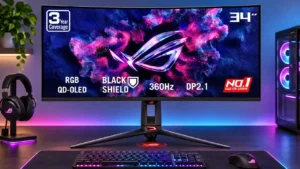
#1 Asus ROG Swift 34 QD-OLED PG34WCDN
4.5

This 360Hz QD-OLED ultrawide delivers exceptional gaming motion, vibrant HDR and dramatically cleaner text. Its high price, less-than-perfect bright-room blacks and occasional HDR dimming are the main reasons to hesitate.

Pros: color gamut, contrast

Cons: value for money, Resolution

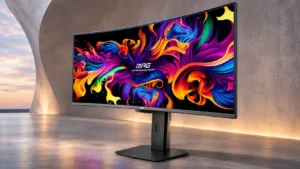
#2 MSI MPG 341CQR QD-OLED X36
4.4

The 360Hz QD-OLED panel delivers exceptional HDR gaming, responsive motion, and cleaner text than earlier ultrawides. Its 3440×1440 resolution is less sharp than 4K, and premium pricing remains a hurdle.

Pros: refresh rate, Text fringing

Cons: Resolution, GPU demands

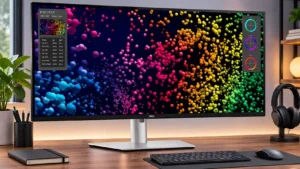
#3 Dell U4025QW
4.4

A huge, sharp ultrawide workspace and unusually capable Thunderbolt dock make the U4025QW outstanding for demanding productivity and editing. Its high price, modest HDR, and imperfect motion handling keep it...

Pros: overall picture quality, color accuracy

Cons: value for money, built-in speakers

#4 ASUS ROG Strix OLED XG27ACDNG
4.4

Lightning-fast 360Hz OLED gaming, rich color and an unusually flexible USB-C/KVM setup are the big draws. Strong room lighting, limited full-screen HDR brightness and static-content burn-in concerns keep it from...

Pros: color gamut, overall satisfaction

Cons: reflection handling, VRR flicker